What's new in F2.

Every update, newest first. The latest is 0.1.6, from 21 October 2026.

Next

Not out yet

Folders your way

Already built, and coming in the next update: give your folders a color and an emoji, as on macOS Tahoe, and put your icons wherever you like.

  • NewCustomize Folder, in the right-click menu: a color, and a symbol or an emoji on the folder, shown as it’ll look while you pick.
  • NewPut icons wherever you like in icon view (Sort By: None). Folders you arranged in Finder open just as you left them, and Clean Up tidies them into the grid.
  • NewKeyboard shortcuts in one place (Settings › Keyboard): give anything Quick Open does a shortcut that works in any app, from Lock Screen to an app, a folder or a snippet, and change F2’s own keys, like Return to open.
  • NewSystem Data, taken apart: Disk Usage shows what the mysterious “System Data” in your Mac’s settings is made of, and how to free each part.
  • NewSwitch Window: every window you have open, not just every app, to find by its name or flip through as you do with apps.
  • NewWhat Finder never had: cut and paste to move files, New File for an empty text file, and an Up button that goes to the enclosing folder.
  • NewFix Spelling: select text in any app and fix its typos right where they are, with your Mac’s own spell checker, in any language it knows. Names are left alone, and nothing leaves your Mac.
  • BetterTagged folders take their tag’s color, as Finder shows them on macOS Tahoe.
  • BetterSearch filters can pick where to look too (Downloads, Desktop, iCloud Drive, Applications…), and Clear takes them all off.
  • BetterThe welcome says what F2 is for in everyday words.
  • BetterThe window looks even more like Finder’s: the files reach the sidebar, the stripes run to the bottom, and dark mode has Finder’s colors.
0.1.6

21 October 2026

Latest

Prices, the bill, and the rest of your day

Quick Open answers more of the everyday questions, from prices and the bill to your music and what’s slowing your Mac. And searches you can narrow down without typing a thing.

  • NewStock and coin prices, with the day’s change: “btc price”, “aapl stock”, “btc in krw”.
  • NewAir quality and the UV index: “air quality”, “uv”.
  • NewTips and splitting the bill: “tip 18% on 84”, “split 120 four ways”.
  • NewKitchen conversions that know what each ingredient weighs: “1 cup flour in grams”.
  • NewShoe and clothing sizes from one country to another: “us 10 shoe in eu”.
  • NewCoin flips, dice, and picking for you: “flip a coin”, “pick sushi, pizza or tacos”.
  • NewMaps and directions: “coffee near me”, “walk to the park”.
  • NewWhere a flight is, from its number: “UA837”.
  • NewA to-do list of what’s due today, checked off with Return. A stopwatch, and reminders to take a break.
  • NewAbout this Mac, free space, your IP address, public holidays, calling a number, and restarting an app.
  • NewSet Desktop Picture in the right-click menu.
  • NewWhat’s slowing your Mac: how busy it is, and the apps using the most, to quit: “what’s slowing my mac”.
  • NewIs the internet down? Wi-Fi, your router and the internet checked one at a time, and what’s wrong said plainly.
  • NewNow playing in Music or Spotify, with its artwork, to pause, skip or love. “play taylor swift” plays it from your library.
  • NewCleaning mode: the keys and clicks off for 30 seconds while you wipe the keyboard: “clean keyboard”.
  • NewSearch filters to pick under the search field: Kind, Date and Size. No need to type them.
  • BetterHalf a question (“18% of”, “tip”) already shows what the answer will be, and answers from the internet show they’re on their way.
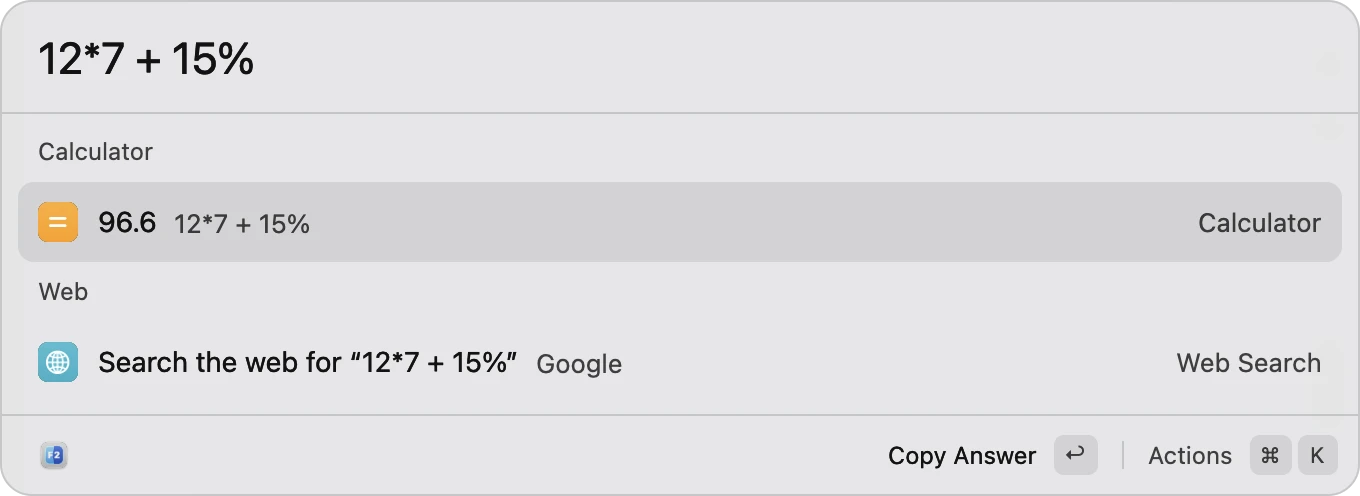
  • Better“12*7=” works out, as you’d type it on a calculator.
  • Fixed“time in” and “weather in” no longer show India’s while you’re still typing the place.

0.1.5

21 October 2026

Screen recording

Record your screen, put your Mac to sleep on a timer, and send files straight from Quick Open.

  • NewScreen recording: the whole screen or an area you drag out, with your microphone and clicks if you like, saved as MP4.
  • NewSleep timers: “sleep in 30 min” puts the Mac to sleep, and “stop music in 45 minutes” pauses Music or Spotify.
  • NewAirDrop or email a file from Quick Open.
  • NewPinned clips: an address or a bank number stays at the top of Clipboard History.
  • NewText tools: make what you copied uppercase, lowercase or title case, clean up its spaces, or take out its line breaks.

0.1.4

21 October 2026

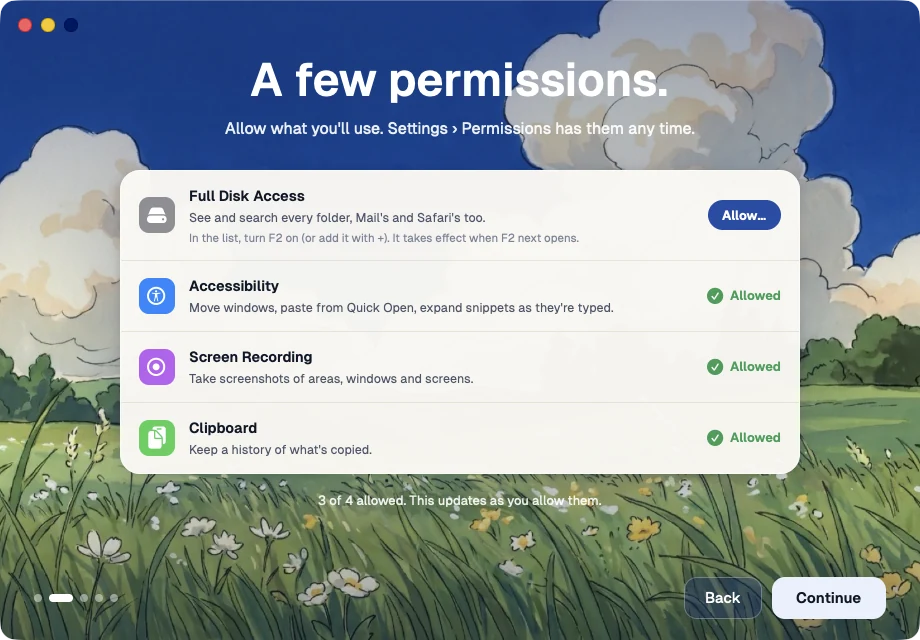
F2's welcome: a few permissions, each with what it's for and a button to allow it

A new welcome, and your Mac at your fingertips

A friendlier first start, and Quick Open learns your contacts, your battery, your Wi-Fi and more.

  • NewA new welcome, in this site’s look. It explains each permission F2 asks for, and helps you pick Quick Open’s shortcut.
  • NewRemove Background for photos, and Copy Text from photos, screenshots and PDFs.
  • NewCall, message, FaceTime or email anyone in Contacts (“call mom”), add notes (“note buy milk”) and set alarms (“alarm 7am”).
  • NewBattery for your Mac, AirPods, mouse and keyboard; where the sound plays; connecting Bluetooth headphones; a speed test; and Wi-Fi passwords, with a QR code guests can scan to join.
  • NewSpelling, synonyms, word counts and package tracking.
  • NewGenerate a password, paste as plain text, find your latest download, and run your Shortcuts by name.
  • NewSunrise and sunset, Night Shift, hiding the desktop icons, and whole phrases like “turn wifi off”.
  • NewSelect text in any app, then press a shortcut to translate it, define it, look it up and more.
  • NewImport from iPhone or iPad: take a photo or scan a document straight into a folder.
  • BetterF2’s notices look like macOS’s own notifications.
  • BetterSettings › Permissions covers Calendar, Reminders and Contacts too.

0.1.3

21 October 2026

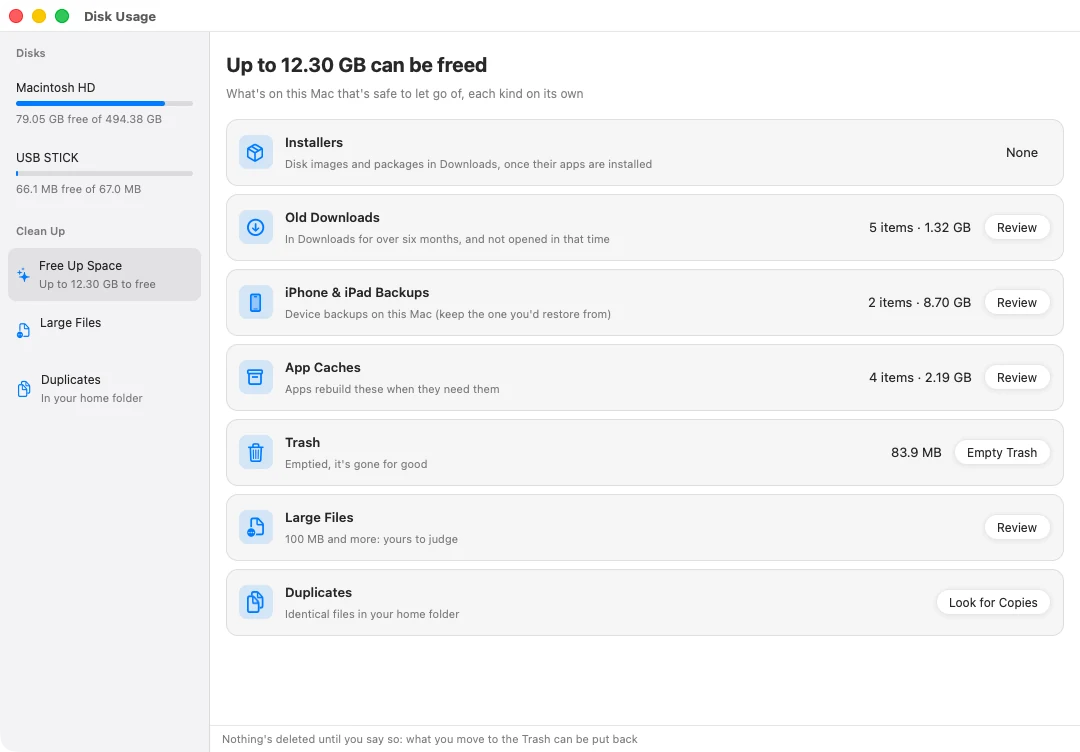
Free Up Space: cards for old installers, old Downloads, backups, caches and the Trash, each with what it'd free

Free Up Space, and answers as you type

The biggest update yet: help with a full disk, a tidier Downloads, search in plain words, and a Quick Open that answers questions.

  • NewFree Up Space: a card for each kind of thing that’s safe to let go of, including Downloads you haven’t opened in six months.
  • NewLarge Files and Duplicates, Uninstall App (with everything an app leaves behind), and Tidy Up for messy folders.
  • NewSearch in plain words: “photos from last week”, “big videos”.
  • NewQuick Open tells the time anywhere, what words mean, translations, the weather and dates, and makes QR codes.
  • NewReminders, calendar events and timers, typed the way you’d say them.
  • NewWi-Fi, Bluetooth, Do Not Disturb, keep awake, volume, brightness and music, from Quick Open.
  • NewHints that finish what you’re typing. Korean, Japanese and Chinese typing, and apps found by their names in those languages.
  • NewZip files and other archives open like folders.
  • NewGallery view and Screenshot History. Two folders side by side get a tab bar each, and swap places with ⌥⌘U.
  • NewQuick Actions: Make Smaller, Create PDF, Combine into PDF, Compress PDF, and images to JPEG, PNG or HEIC.
  • NewNew windows open in the folder you choose, and Quick Open on the screen you choose, with any shortcut you like.
  • BetterDisk Usage counts big files by the space they really take.
  • BetterThe toolbar fits narrow windows, and Quick Open shows each command’s shortcut.
  • FixedOnly one Settings window opens at a time.
  • FixedTwo crashes: one when switching keyboard languages, one with Open in Other Pane.
  • FixedWith a second display, windows, screenshots and pins appear on the right screen.

0.1.2

20 October 2026

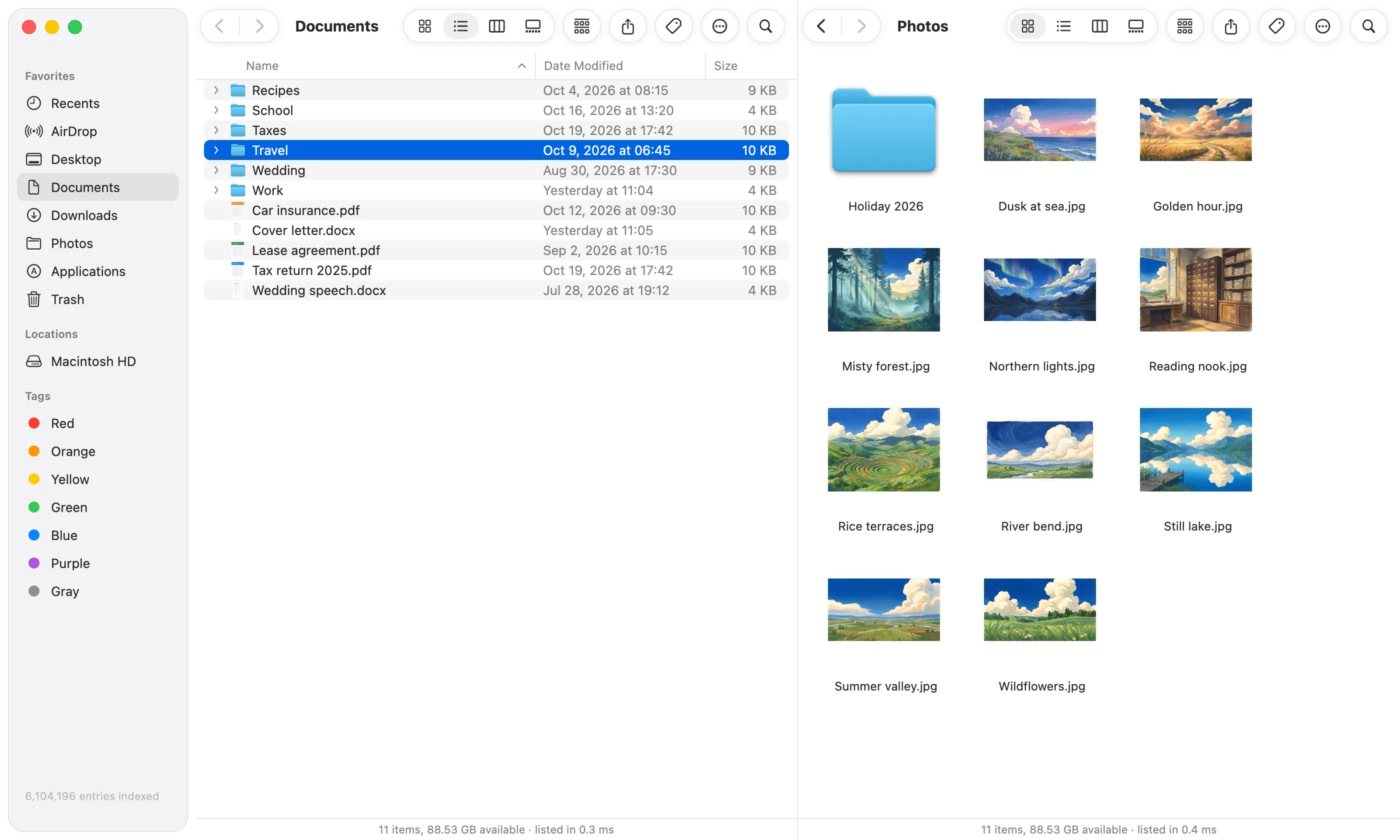
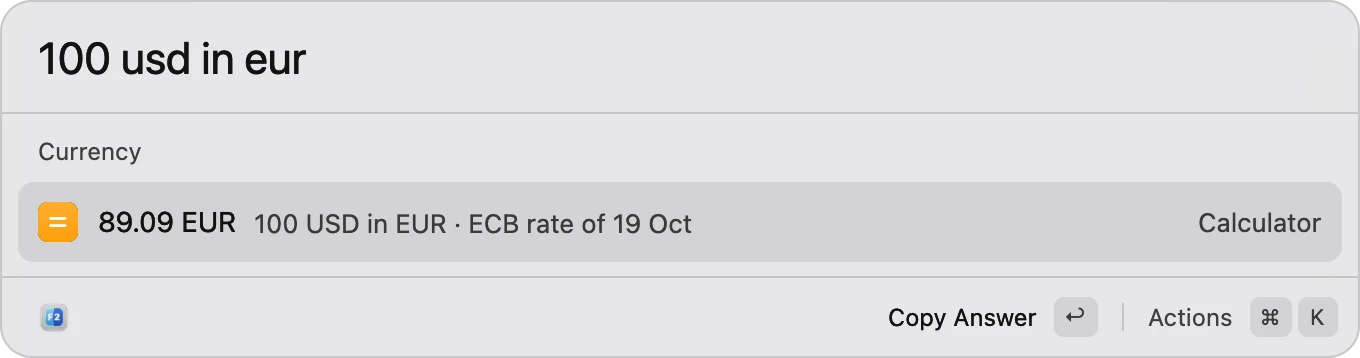
F2 with two folders side by side: Documents as a list, and a folder of photos as iconsQuick Open converting 100 USD to 89.09 EUR at the ECB's rate

Two folders side by side

Show two folders at once, convert currencies, and use half the memory.

  • NewTwo folders side by side (⌥⌘S): Tab moves between them, F5 copies across, F6 moves.
  • NewCurrency in Quick Open: “100 usd in eur”, or “$50” into your own, at the European Central Bank’s daily rates.
  • BetterF2 uses about half the memory it did.
  • BetterThe disk image’s window has room for everything in it.
  • FixedA crash when Quick Open was opened from a tab that was still updating.

0.1.1

20 October 2026

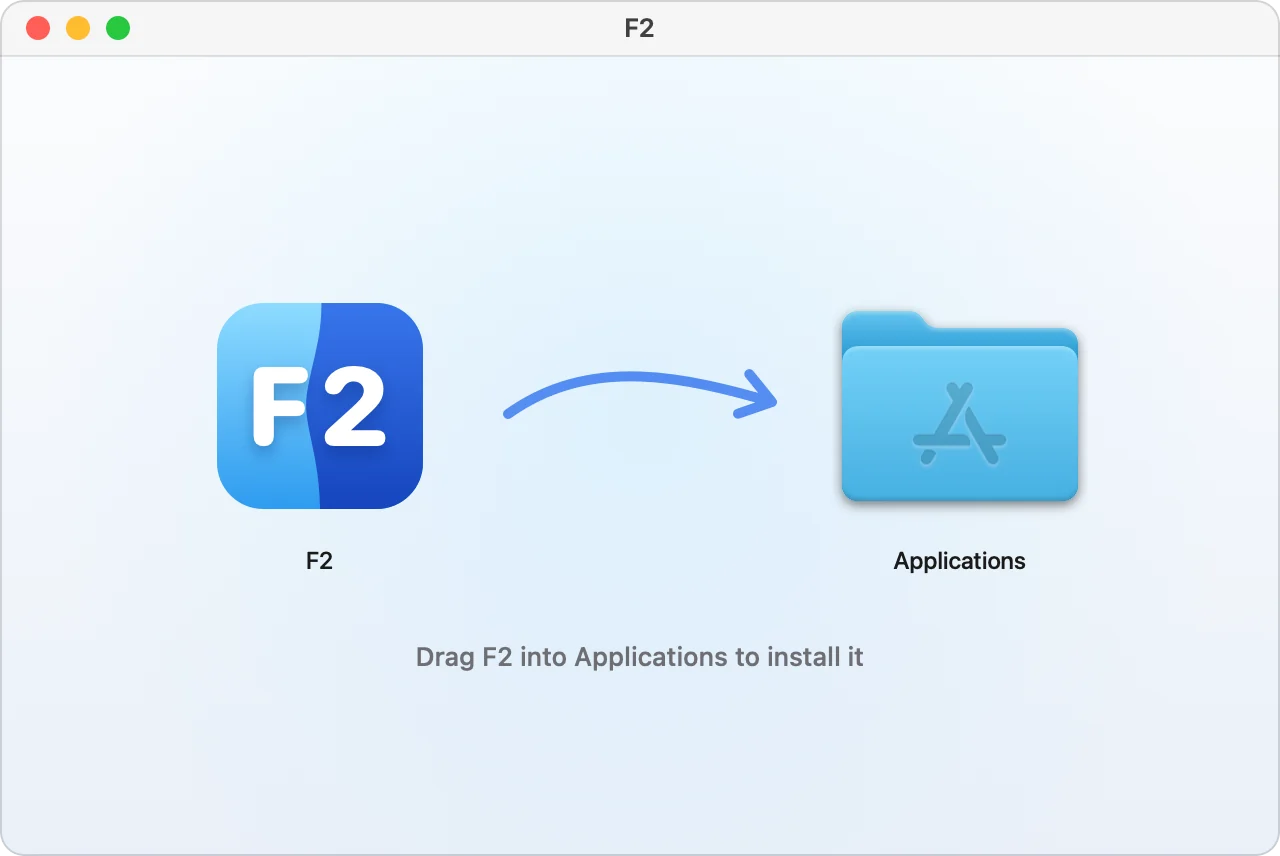
F2's disk image: F2 on the left, an arrow, and the Applications folder on the right

Ventura, and a proper disk image

F2 runs on more Macs, and installs the usual way.

  • BetterRuns on macOS 13 Ventura and later.
  • BetterThe disk image shows F2 and your Applications folder with an arrow between them: drag one onto the other.
  • BetterFolders stay on top only when sorting by name, as in Finder.

0.1.0

20 October 2026

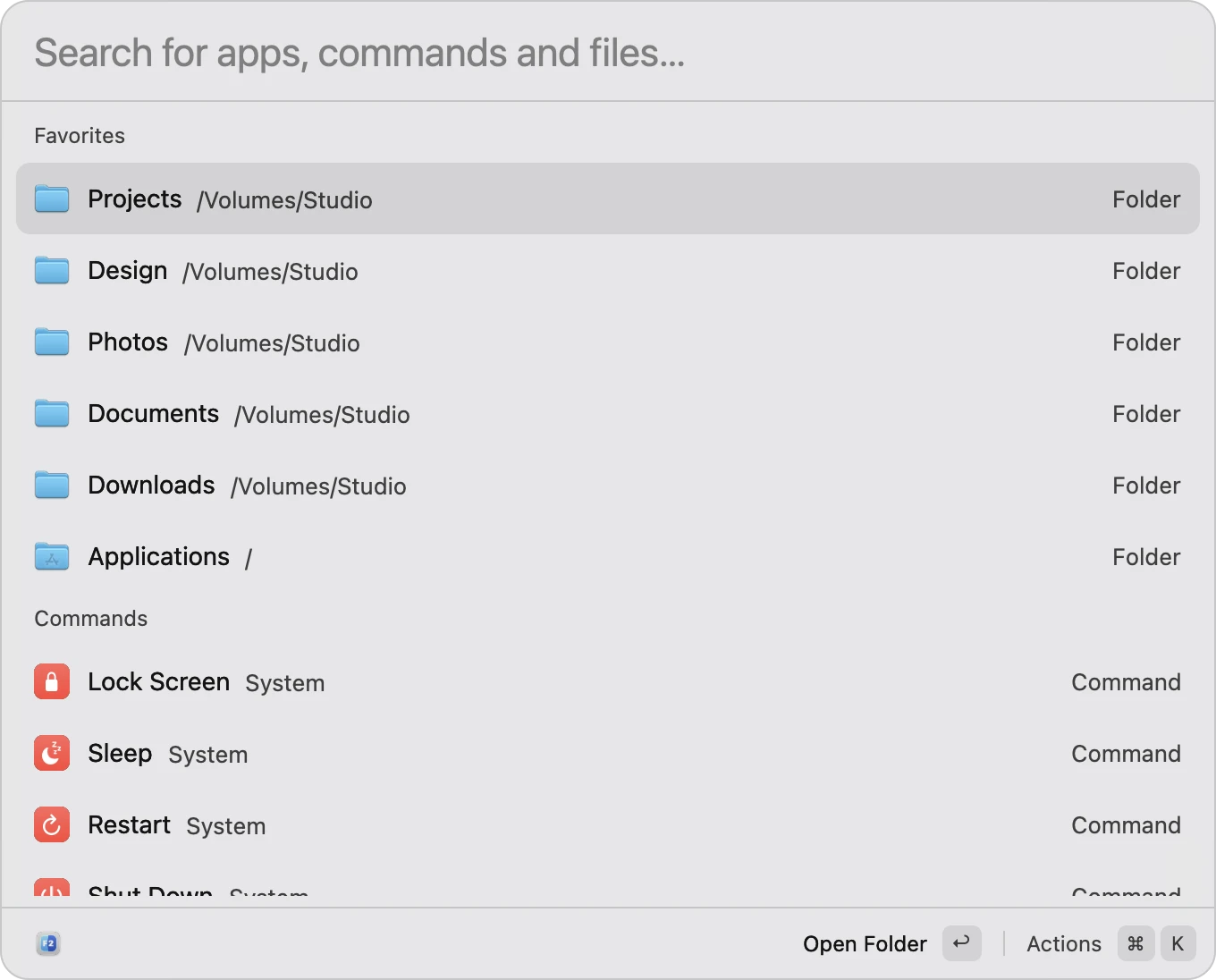
Quick Open with nothing typed: favorite folders, then commands such as Lock Screen and SleepQuick Open working out 12*7 + 15% as 96.6

The first release

F2’s first public version.

  • NewFinder’s windows, tabs, sidebar and views, with its icons, right-click menus, Get Info, Quick Look and Trash.
  • NewSearch across your whole Mac as you type.
  • NewQuick Open on ⌘ Space: apps, files, a calculator, unit conversions, System Settings, and commands like Lock Screen.
  • NewClipboard History, Emoji & Symbols, snippets and quicklinks.
  • NewScreenshots with an editor: arrows, text, blur, numbered steps and backgrounds.
  • NewWindows snapped to halves, thirds and quarters, from a shortcut or Quick Open.
  • NewDisk Usage: a ring chart of what fills your disk.
  • NewFor developers: Git’s status beside files, Open in Terminal and Open in Editor, and stopping what’s on a port.

Give Finder the afternoon off.

Download F2, press ⌘Space, and type the name of anything on your Mac.

Version 0.1.6 · Free · Apple silicon · macOS 13 or later