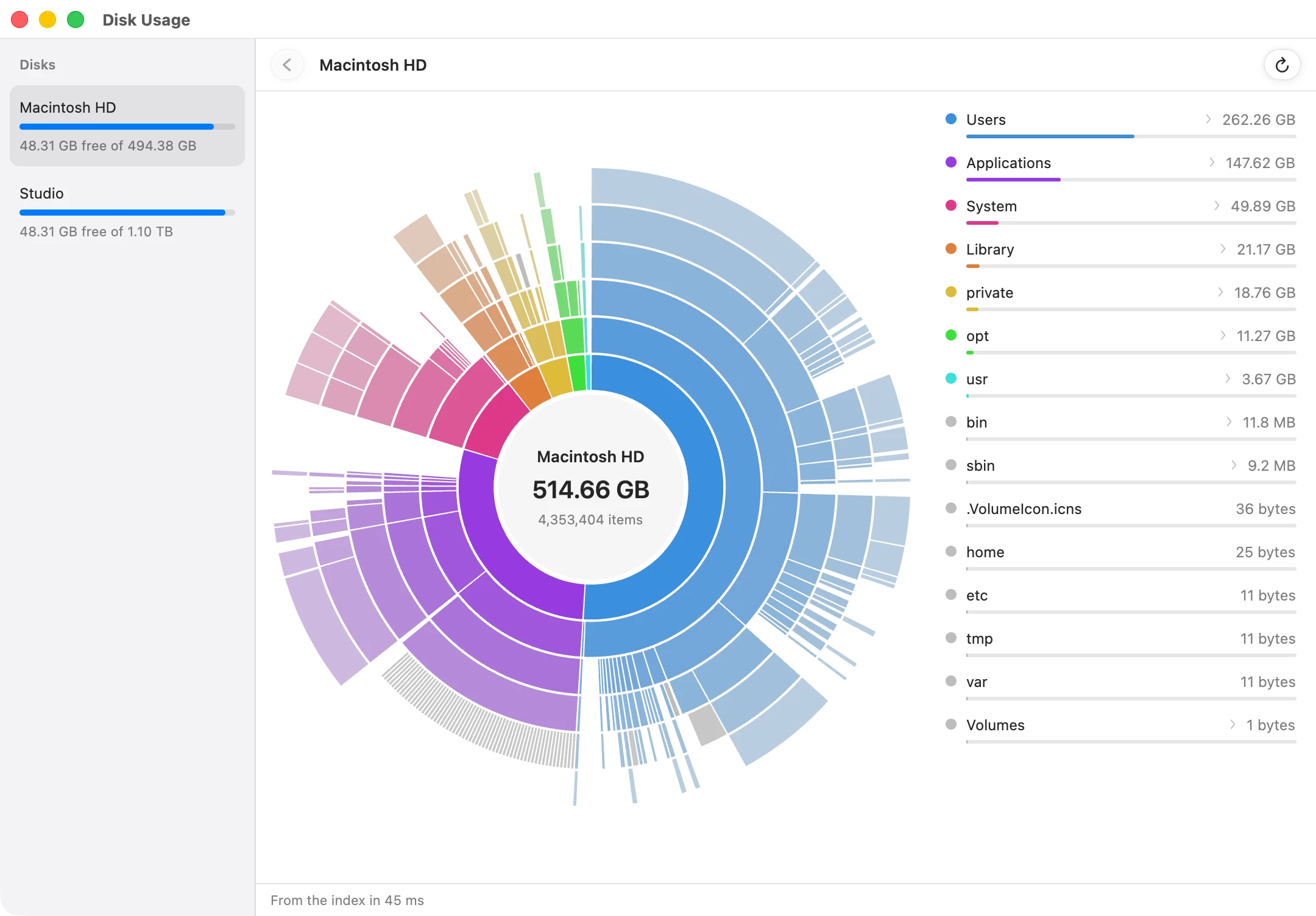
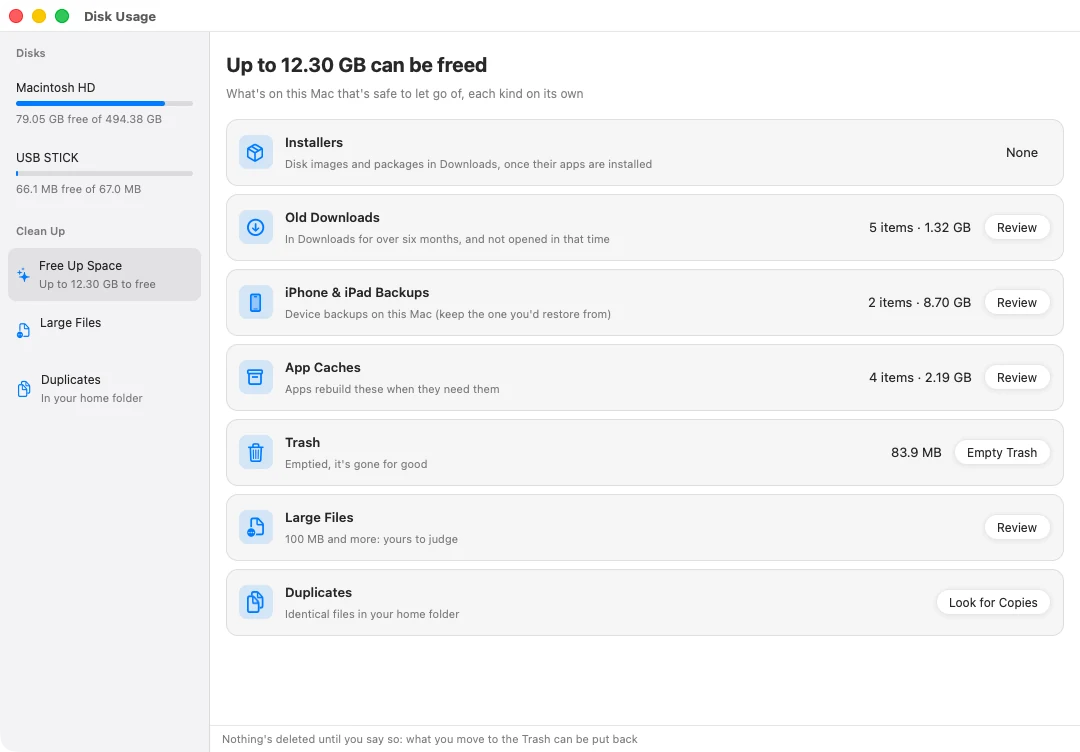
Disk Usage: a ring chart of what's filling the disk, beside a list of the biggest foldersFree Up Space: cards for old installers, old Downloads, backups, caches and the Trash, each with what it'd free

Free up space

When your Mac says its storage is almost full: see what’s using it, and clear what’s safe to let go of. It all goes to the Trash first.

  • Free Up Space

    A card for each kind of thing that’s safe to let go of, with how much it frees. Review a list, or tick it all.

  • Old installers

    Disk images and installers left in Downloads.

  • Old Downloads

    Files that have sat in Downloads for over six months without being opened.

  • Backups, caches and the Trash

    Old iPhone and iPad backups, apps’ caches, and what’s waiting in the Trash.

  • Large files

    Everything of 100 MB and up, with when you last opened it.

  • Duplicates

    Files that are exact copies of each other. The oldest one is kept.

  • Disk Usage

    A ring chart of what’s filling a disk. Click a slice to look inside, or right-click to show it or move it to the Trash. Your whole startup disk appears in half a blink.

  • Uninstall apps

    Removes an app and what it leaves in your Library: support files, caches, settings and logs, each with its size.

    uninstall zoom
  • Tidy Up

    Sorts a folder’s loose files into Screenshots, Images, Videos, Documents, Installers and more. One undo puts it all back.

  • Put Back

    Whatever F2 clears goes to the Trash, and Put Back returns it.

  • Free space at a glanceNew

    See how much space is free, with Free Up Space and Disk Usage a Return away.

    storage
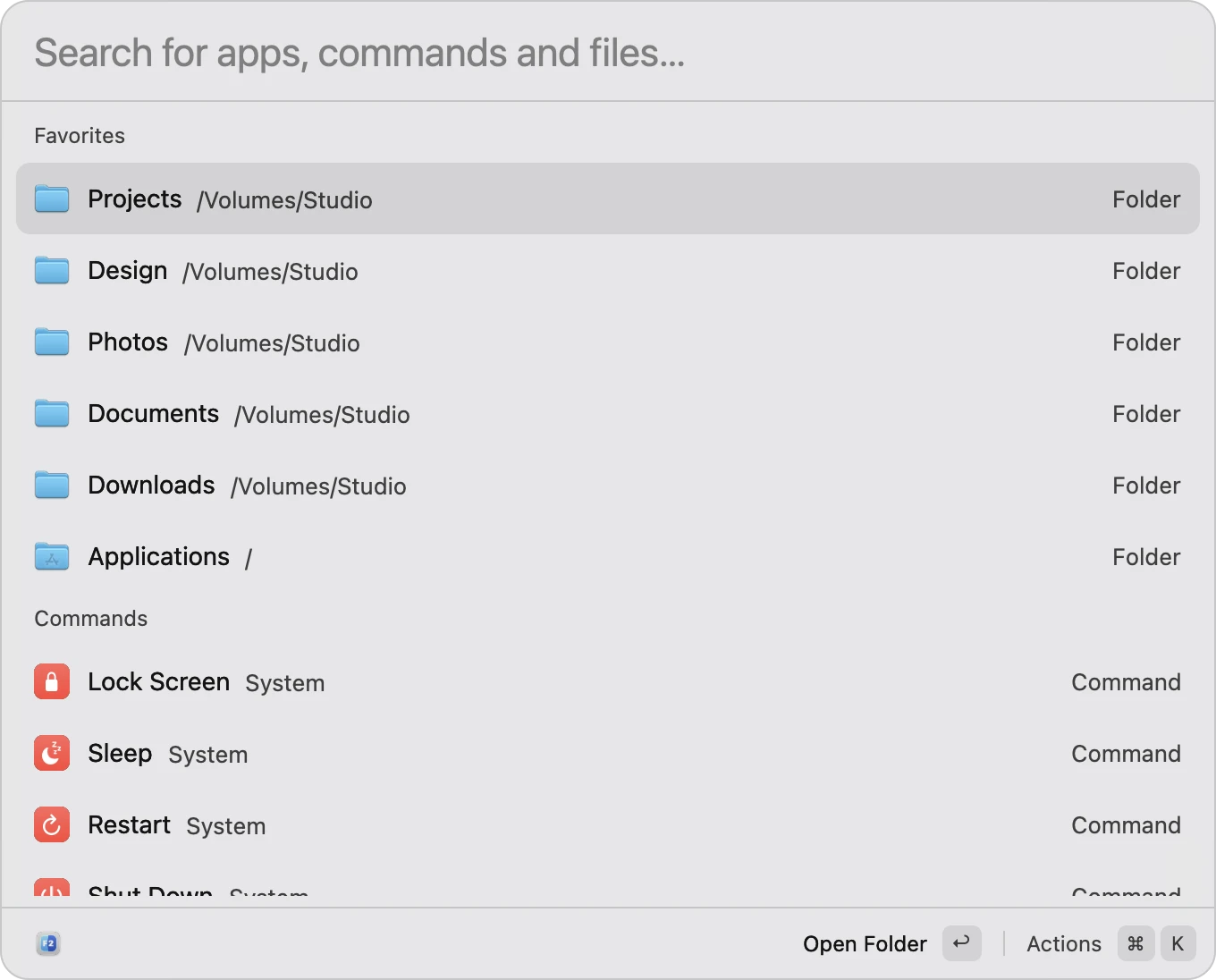
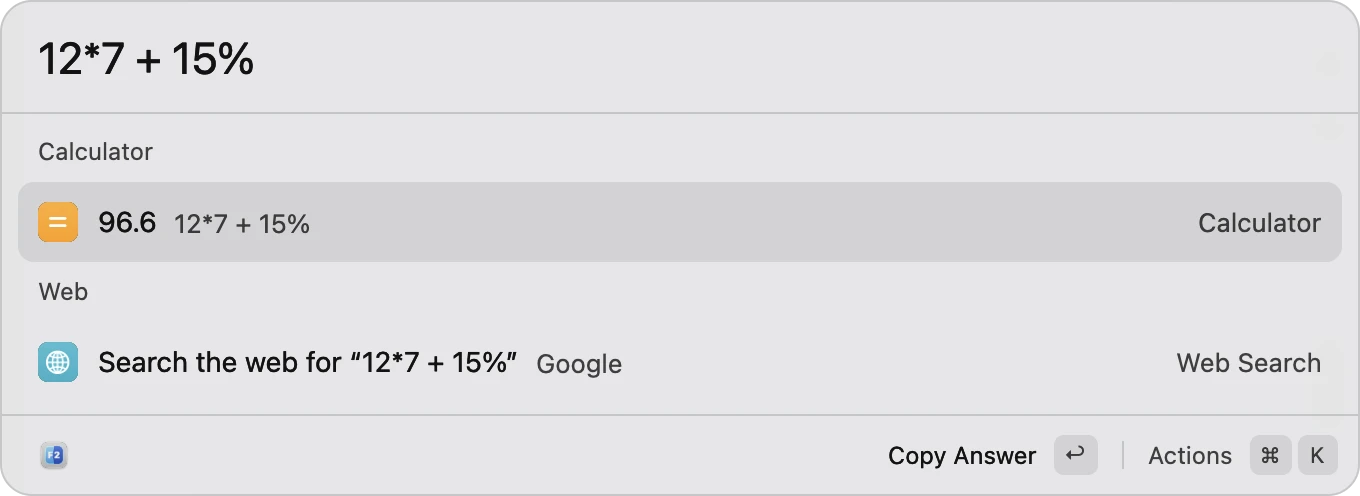
Quick Open with nothing typed: favorite folders, then commands such as Lock Screen and SleepQuick Open working out 12*7 + 15% as 96.6

Open anything

Press ⌘ Space in any app, type a few letters, press Return. Quick Open opens apps, files, folders and websites, and does a lot more besides.

  • From any app⌘Space

    Or from the F2 in the menu bar. Choose another shortcut, the screen it opens on, and its font and size in Settings.

  • Apps

    By name, initials, or a few letters in order. The ones you use most come first.

    vsc
  • Apps in your language

    Find apps by their Korean, Japanese or Chinese names: both of these find Notes.

    메모めも
  • Files and folders

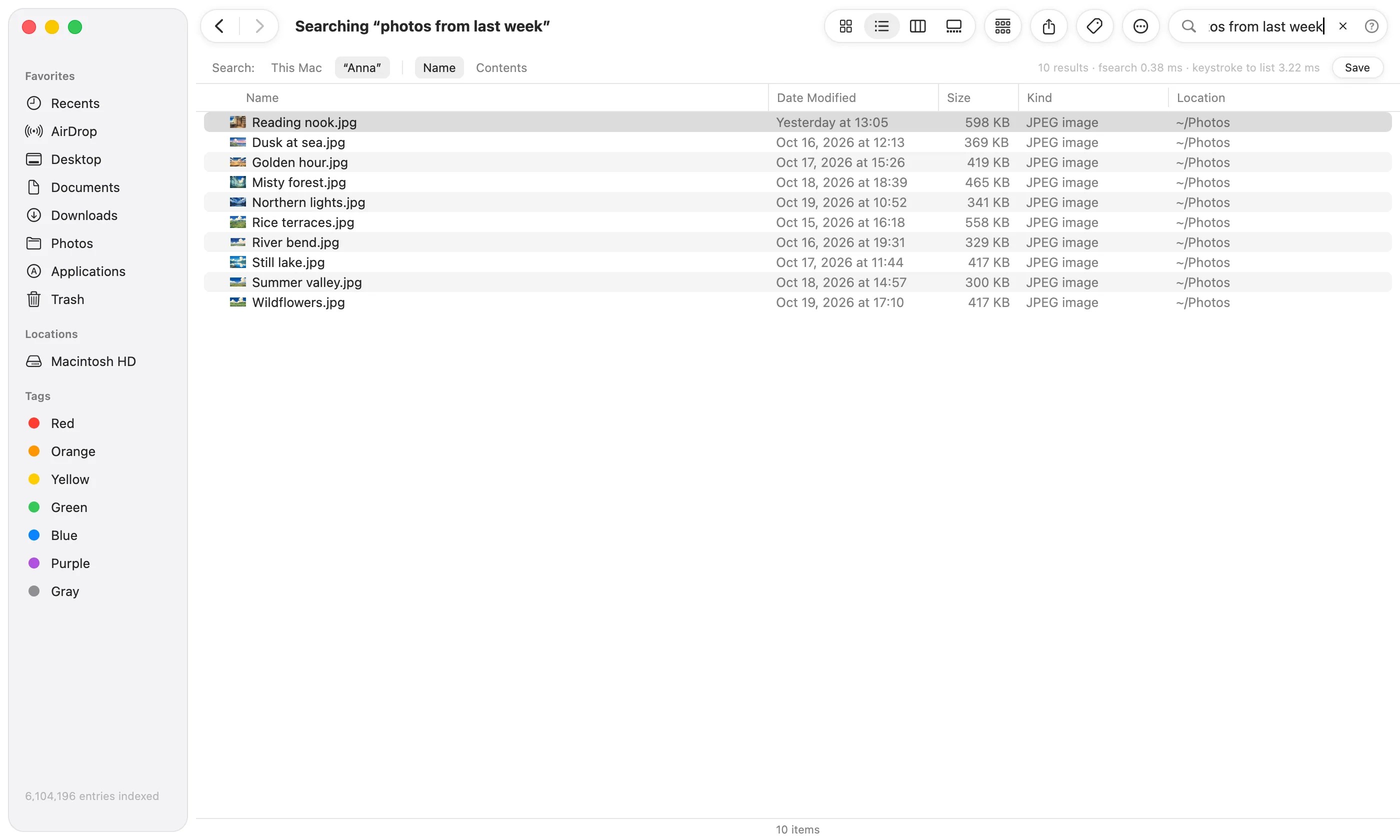
    Anywhere on your Mac, by a few letters, typos forgiven. Return opens it, and ⌘ Return shows it in its folder.

  • Websites and folders

    Type a web address or a folder’s path to go there, or anything else to search the web.

    ~/Downloads
  • More with ⌘K

    Show a result in its folder, Quick Look it, copy its path, make an image your desktop picture, move it to the Trash, or quit an app.

  • AirDrop and email

    Send a file from Quick Open, without opening a window.

  • Recent and favorites

    With nothing typed, it lists what you opened lately, your favorite folders and every app.

  • Hints as you type

    Gray text finishes what you’re typing: “time” suggests “in tokyo”. Tab takes it.

  • Korean, Japanese and Chinese

    Typing in them works as it should, and you can ask in them too.

    東京の時間도쿄 시간
  • Selected text, anywhere

    Select text in any app and press a shortcut: translate it, define it, open its link, work it out, count it, or make a QR code of it.

  • Your Shortcuts

    Run any of your Shortcuts by name.

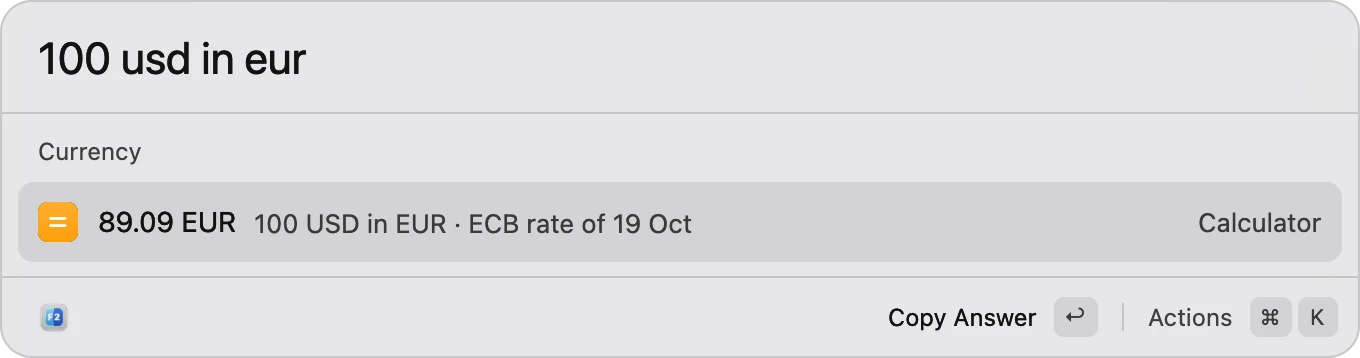
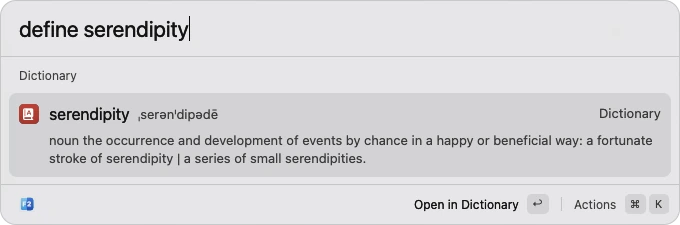
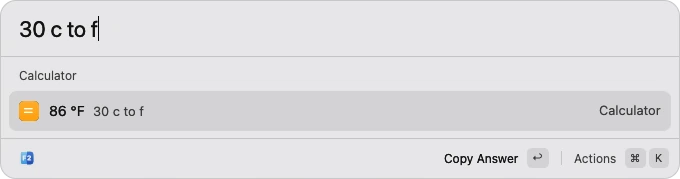
Quick Open converting 100 USD to 89.09 EUR at the ECB's rateQuick Open defining a word, from the Mac’s dictionaryQuick Open converting 30 °C to 86 °F

Quick answers

Ask in plain words in Quick Open and the answer appears as you type. Return copies it.

  • Calculator

    Sums, percentages and more, worked out as you type.

    12*780 + 15%sqrt 2
  • Units

    Distances, weights, temperatures and the rest.

    5 km in mi30 c to f
  • Currency

    At the European Central Bank’s daily rates. A plain “$50” goes into your own currency.

    100 usd in eur€20 to krw$50
  • Stock and coin pricesNew

    With the day’s change. Return copies the price, and the next row opens its chart.

    btc priceaapl stockbtc in krw
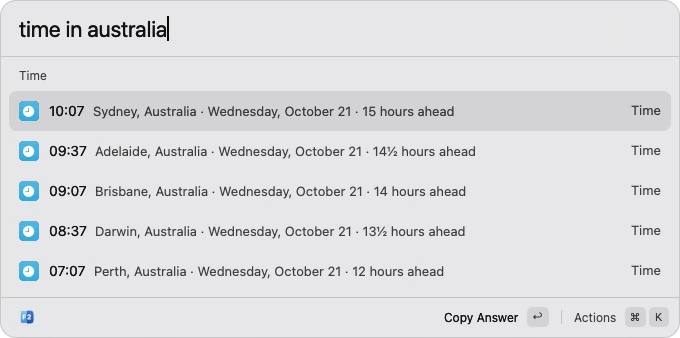
  • Time around the world

    About 7,500 cities, and every time zone.

    time in tokyo3pm in londonpst
  • Dates

    Count the days, or find out what day something falls on.

    days until christmas100 days from todayweek number
  • Dictionary

    What a word means, from your Mac’s dictionary.

    define serendipity
  • Spelling

    The right spelling of a word you’re not sure of.

    spell accomodate
  • Synonyms

    Other words for it, from macOS’s thesaurus, with opposites.

    synonym for happy
  • Word count

    Counts the words, characters and lines in what you copied.

    word count
  • Translate

    With Apple’s translation, on your Mac. Languages Apple doesn’t have open in Google Translate.

    translate holagood morning to japanese
  • Weather

    Now and the next three days, here or anywhere.

    weatherweather in tokyo
  • Sunrise and sunset

    Here or anywhere, in that place’s time.

    sunsetday length
  • Air quality and UVNew

    Fine dust, with what to do about it, and the UV index now and at today’s peak.

    air qualityuv
  • HolidaysNew

    The next public holidays, here or in another country.

    next holidayholidays in japan
  • QR codes

    Make one of a link or any text, to scan with your phone. “qr” alone makes one of what you copied.

    qr
  • Tips and the billNew

    Work out the tip, and split it between friends.

    tip 18% on 84split 120 four ways
  • KitchenNew

    Cups, spoons and grams, with each ingredient weighing what it should.

    1 cup flour in grams200 g butter in cups
  • Shoe and clothing sizesNew

    From one country’s sizes to another’s.

    us 10 shoe in eumedium shirt in korean
  • Flip a coinNew

    Coins, dice, a random number, or a pick between a few things.

    flip a coinroll 2d6pick sushi, pizza or tacos
  • Maps and directionsNew

    In Apple Maps or Google Maps, and Naver Map or Kakao Map in Korea.

    coffee near mewalk to the park
  • FlightsNew

    Type a flight number to see where it is.

    UA837
  • Parcels

    Paste a tracking number to open the carrier’s page: UPS, FedEx, DHL, Japan Post and more.

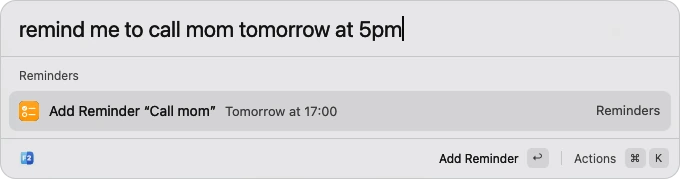
Quick Open adding a reminder to call mom tomorrow at 17:00Quick Open showing the time in Australia's cities

Your day

Reminders, events, timers and calls, typed the way you’d say them.

  • Reminders

    Added to Reminders, with the time worked out.

    remind me to call mom tomorrow at 5pmremind me in 20 minutes to check the oven
  • Calendar events

    Added to your calendar as you say them.

    lunch with Sara friday at 1workshop monday 2pm for 3 hours
  • What’s next

    Your next meeting, or the whole day. Return joins a Zoom, Meet or Teams call.

    next meetingmy day
  • To-doNew

    What’s due today, and overdue. Return checks one off.

    todo
  • Timers

    The countdown sits in the menu bar, and a sound plays when it’s done.

    timer 10 minpomodoro
  • StopwatchNew

    Counts up in the menu bar. Pause, resume or stop it from there.

    stopwatch
  • Alarms

    The alarm’s time shows in the menu bar until it goes off.

    alarm 7amwake me at 6:30
  • BreaksNew

    A soft sound and a note to rest your eyes, stand up or drink some water, until you stop them.

    eye break every 20 mindrink water every 30 minutes
  • Sleep timers

    Put the Mac to sleep, or pause Music and Spotify, a while from now.

    sleep in 30 minstop music in 45 minutes
  • Calls and messages

    Anyone in Contacts. Calls go through your iPhone.

    call momfacetime saramessage dad
  • Notes

    Straight into Apple Notes.

    note buy milk
  • Passwords

    A strong one, copied, and cleared from the clipboard after 90 seconds.

    generate passwordgenerate pin
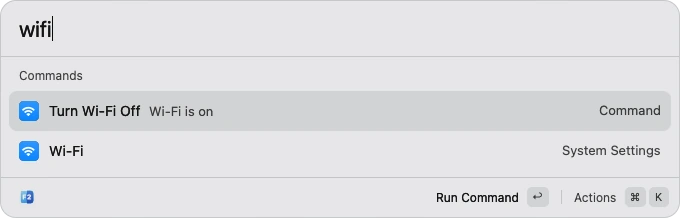
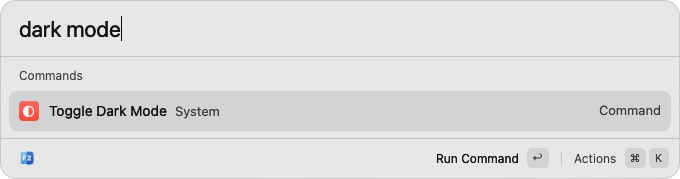
Quick Open turning Wi-Fi off and onQuick Open switching Dark Mode

Your Mac

The settings you reach for most, and what’s going on with your Mac, without opening System Settings.

  • Battery

    Your Mac’s charge and time left, and your AirPods’, mouse’s and keyboard’s.

    battery
  • Bluetooth

    Connect or disconnect headphones, speakers, mice and keyboards.

    connect airpods
  • Sound

    Change the volume, or where the sound plays.

    volume 30mutespeakers
  • Brightness and music

    Set the screen’s brightness. Play, pause and skip tracks.

    brightness 50
  • Now playingNew

    The song in Music or Spotify, with its artwork. Pause, skip, love it or find its lyrics.

    now playing
  • Play musicNew

    The best match from your Music library, or a search in Apple Music or Spotify.

    play taylor swiftplay chill playlist
  • Wi-Fi password

    Shows a network’s password, with a QR code guests can scan to join.

    wifi password
  • Speed test

    Download, upload and responsiveness, with macOS’s own test.

    speed test
  • Is the internet down?New

    Checks Wi-Fi, your router and the internet one at a time, and says what’s wrong in plain words.

    is the internet down
  • Keep awake

    For two hours, until 5pm, or until your downloads finish.

    keep awake
  • Switch things on and off

    Wi-Fi, Bluetooth, Do Not Disturb and Night Shift.

    turn wifi offnight shift ondnd off
  • Dark mode

    Switch between light and dark.

    dark mode
  • Hide desktop icons

    Before you share your screen. Show Desktop too.

    hide desktop icons
  • About this MacNew

    Model, chip, memory, macOS and serial number, ready to copy.

    about this mac
  • What’s slowing your MacNew

    How busy it is, and the apps using the most. Return quits one.

    what's slowing my mac
  • Clean your keyboardNew

    Keys and clicks off for 30 seconds while you wipe it.

    clean keyboard
  • Your IP addressNew

    On this network, and to the internet.

    my ip
  • Restart an appNew

    Quits it and opens it again.

    restart safari
  • Quit apps

    One, all of them, or force quit one that’s stuck.

    quit safariquit all
  • Lock, sleep and restart

    Lock Screen, Sleep, Restart, Shut Down and Log Out. Empty Trash and Eject All Disks too.

  • System Settings

    Any pane, by name.

    displayssound
  • Latest download

    The newest files in Downloads.

    latest download
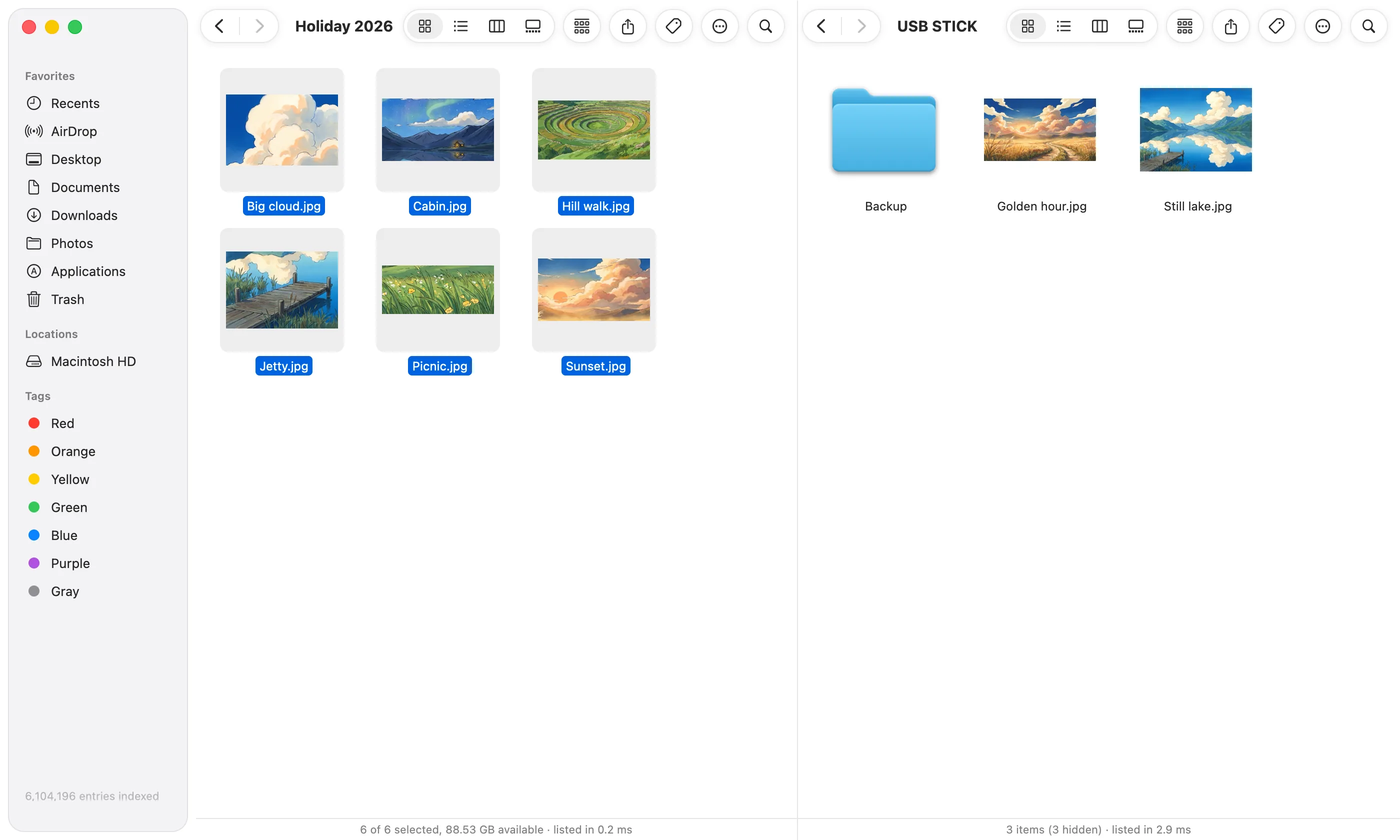
Two folders side by side: holiday photos on the left, a USB stick on the right

Everything Finder does

The same windows, sidebar and Trash, so there’s nothing new to learn, and Finder stays on your Mac.

  • Windows and tabs⌘N⌘T

    Each one remembers where it was.

  • The sidebar

    Favorites, Recents, AirDrop, iCloud Drive, your disks, Dropbox, Google Drive, OneDrive, the network and Tags.

  • Four views

    Icons at any size, a list, columns, or a gallery with a big preview.

  • A list your way

    Choose, resize and reorder its columns, and open folders in place.

  • Sort and group

    By kind, date, size or tags. Each folder remembers its own view.

  • Folder sizes

    Shown right away, and kept up to date as files change.

  • Looks like Finder

    Finder’s own icons, thumbnails, tag colors and iCloud badges.

  • Right-click menus

    Open With, Get Info, Rename, Compress, Duplicate, Share, Tags and the rest, as in Finder.

  • Icons where you put themNext update

    Drag icons anywhere in icon view, as in Finder. Folders you arranged in Finder open just as you left them; Clean Up tidies them into rows.

  • Folder colors and emojiNext update

    Give a folder a color, and a symbol or an emoji on it, as on macOS Tahoe. Tagged folders take their tag’s color.

  • Import from iPhone

    Take a photo, scan a document or add a sketch on your iPhone or iPad, saved straight into the folder.

  • Rename many at once

    Replace or add text, or number them, and see the new names as you type.

  • Copy and move safely

    It asks before replacing anything, shows progress, and can be stopped.

  • Drag and drop

    Between windows, and to and from any app, even Mail and Photos. Folders spring open as you drag over them.

  • AirDrop

    Send files to nearby devices without opening Finder.

  • Undo⌘Z

    Undo and redo for everything you do.

  • The Trash

    Put Back, Empty Trash, and Delete Immediately.

  • Get Info⌘I

    Tags, comments, permissions, a custom icon, and which app opens it.

  • Quick LookSpace

    Videos, PDF pages, Markup and full screen, in macOS’s own preview.

  • Zip files as folders

    Open .zip, .rar, .7z and .tar files like folders. Extract unpacks them.

  • Two folders side by side⌥⌘S

    Drag from one to the other, each with its own tabs.

  • Go to Folder⇧⌘G

    Type where to go, with completion. Connect to a file server too.

  • Preview pane⇧⌘P

    And a path bar, and a status bar with the free space.

  • Start where you like

    New windows open in Home, Downloads, or any folder you pick.

  • Show in Finder opens F2

    When an app offers to show a file in Finder, it opens in F2.

  • Set Desktop PictureNew

    Right-click an image to make it your desktop picture.

Quick fixes for files

Right-click a file for the jobs you’d otherwise need another app for.

  • Make Smaller

    A photo to a 1600-pixel JPEG, or a video to 720p, small enough to email.

  • Remove Background

    Keeps a photo’s subject on a clear background. On macOS 14 and later.

  • Copy Text

    Copies the words in a photo, a screenshot or a scanned PDF.

  • Convert images

    To JPEG, PNG or HEIC, and rotate them.

  • PDFs

    Make a PDF, combine several into one, or make one smaller.

  • Videos to MP4

    Convert a video to MP4, for whatever won’t play it as it is.

  • Your Shortcuts

    Your own Shortcuts, right in the menu.

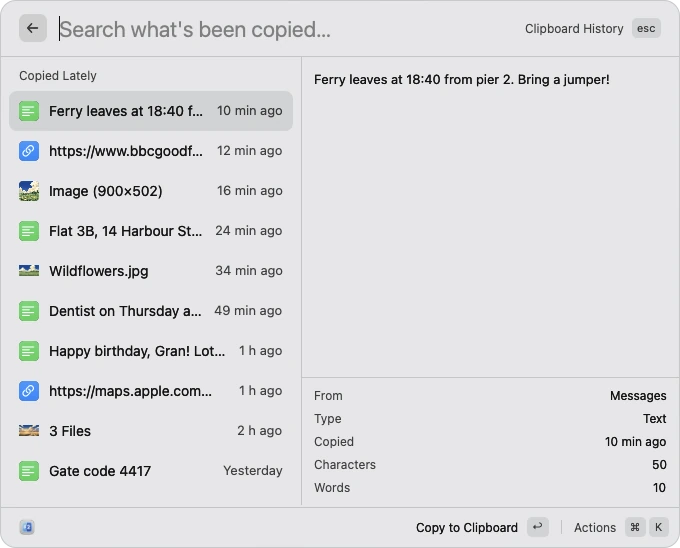
Clipboard history: text, links, an image and files, newest first, with a preview of the one picked

Copy, paste, type less

Everything you copy, kept, plus emoji and shortcuts for what you type again and again.

  • Clipboard History

    Text, links, images and files, newest first, with a preview. Keeps 50, 200 or 1,000.

  • Passwords stay out

    What password managers mark as secret isn’t kept.

  • Pinned clips

    Pin an address or a bank number so it stays at the top, and is never cleared.

  • Paste as Plain Text

    Pastes without the formatting, then puts your clipboard back as it was.

  • Text tools

    Change what you copied, or the text you’ve selected, right where it is.

    uppercasetitle caseremove line breaks
  • Emoji & Symbols

    Every emoji, plus arrows, keys, math and currency symbols, found by name.

    :check:+1
  • Paste where you were

    Return pastes a clip or an emoji into the app you were in. ⌘ Return just copies it.

  • Snippets

    Type a short keyword in any app and it becomes your text, with today’s date or what you copied filled in.

    ;date
  • Quicklinks

    Open a site or a folder by keyword: “gh rust” searches GitHub.

    gh rust

Screenshots and recordings

Take one, mark it up and send it, from a shortcut in any app.

  • Area, window or screen

    Drag out an area (Space switches to a window), or take the whole screen.

  • Copy text off the screen

    Drag over any text, even in a picture, and it’s copied.

  • Pick a color

    Copies the hex code of any color on the screen.

  • Read a QR code

    Straight off the screen, without your phone.

  • Ready to share

    Each shot is copied and shown in the corner: drag it into an app, or edit, save or pin it.

  • Mark it up

    Arrows, shapes, a pen, a highlighter, text, numbered steps, blur and crop, in eight colors.

  • Backgrounds

    Set a shot on a gradient, with padding, rounded corners and a shadow.

  • Pin

    Float a screenshot over everything while you work.

  • Screenshot History

    Your last 50, to copy, edit, save or pin again.

  • Screen recording

    The whole screen or an area, with your microphone and clicks if you like, saved as MP4.

  • A tidy Desktop

    Screenshots can go into a Screenshots folder instead of piling up.

Tidy windows

Snap the window in front to half the screen, a quarter or a third, from a shortcut or Quick Open.

  • Halves, thirds and quarters

    Press again for two thirds, then one third.

    left half
  • Fill the screen

    All of it, or almost. Or just its height.

  • Center and resize

    Center a window, or make it a size smaller or larger.

  • Other displays

    Move a window to the next screen, or back.

    next display
  • Back where it was

    Restore a window’s size and place.

  • Shortcuts

    Familiar ones set up in one click, or record your own. A gap around windows if you like.

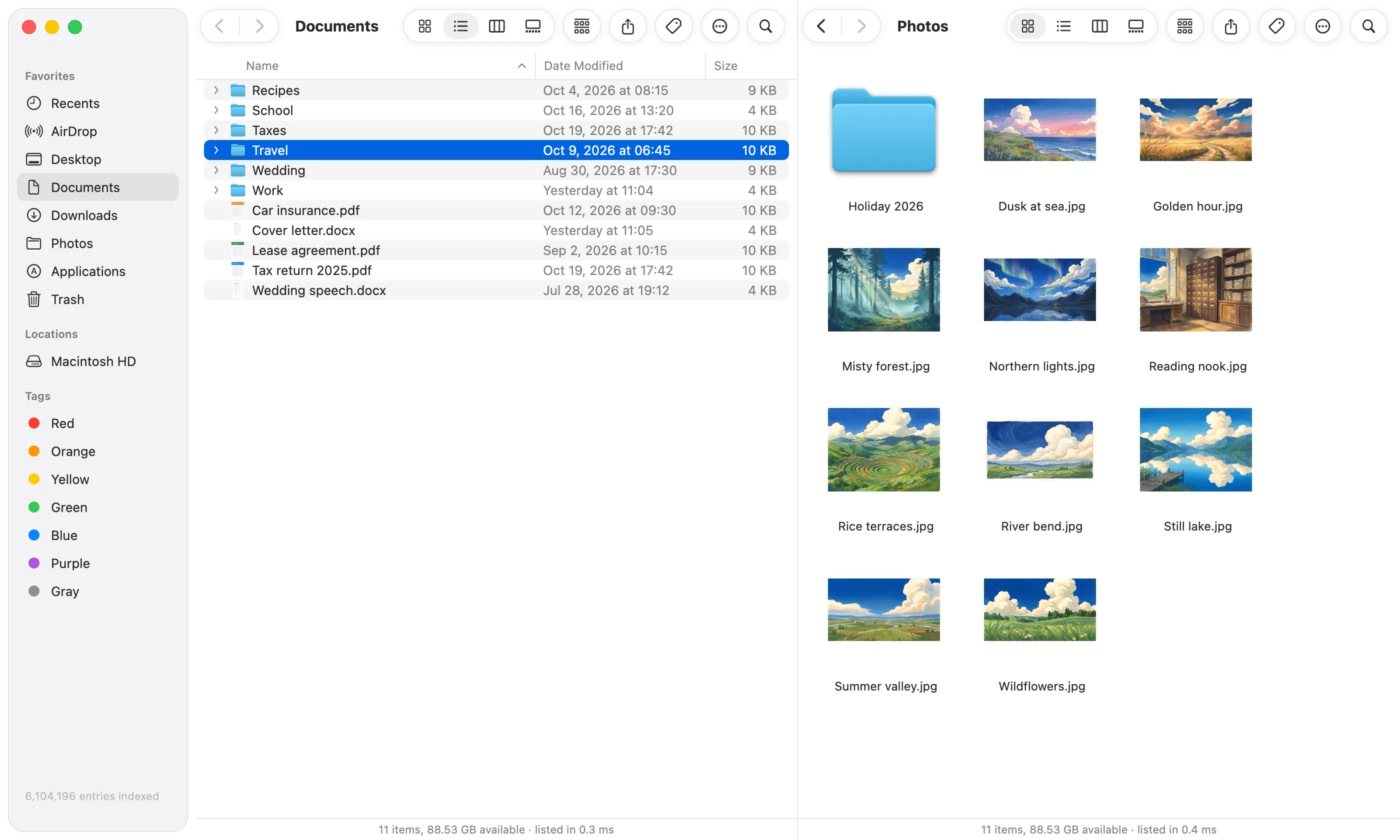
F2 with two folders side by side: Documents as a list, and a folder of photos as icons

For power users

Out of the way until you want them.

  • Two panes by keyboardF5F6

    Tab between them, F5 copies across, F6 moves, and ⌥⌘U swaps them.

  • Git’s status

    Modified, added and untracked files marked beside their names, and a dot on folders with changes.

  • Terminal and editor⌥⌘T⌥⌘E

    Open the folder or selection in Ghostty, iTerm, Warp, Zed, Cursor or VS Code.

  • Ports

    See what’s listening, and stop it.

    kill port 3000ports
  • Repos

    Find your repos by name, open them on GitHub, see their pull requests, or copy the branch name.

  • JSON, Base64 and URLs

    Format or minify the JSON you copied, or encode and decode it.

  • UUIDs and timestamps

    Generate a UUID, copy the Unix time, or read a timestamp as a date.

  • Search filters

    By extension, kind, size, date or folder, with globs, or through files’ contents.

    ext:pdf
  • Snippet fill-ins

    {clipboard}, {date}, {time}, {uuid} and {cursor} in your snippets.

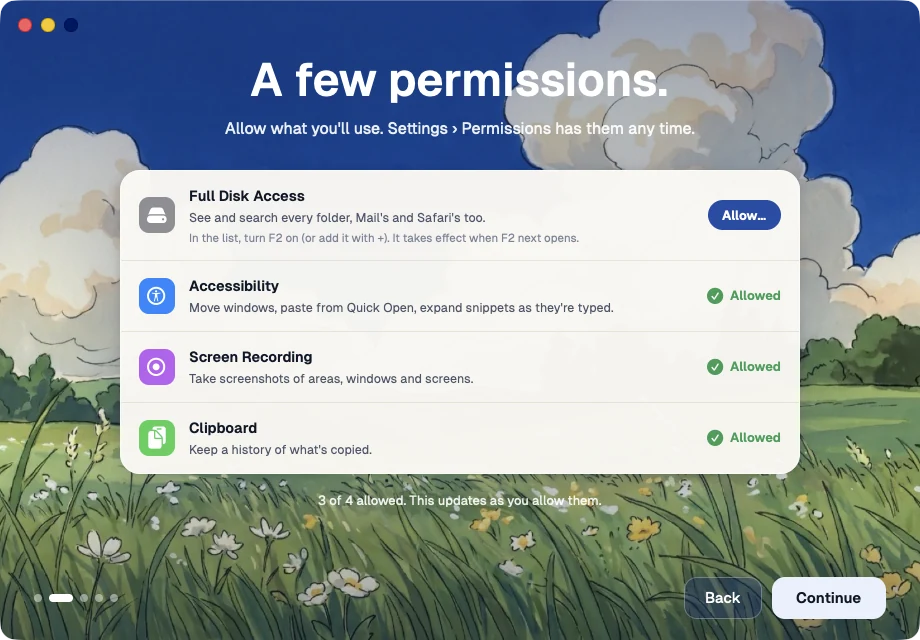
F2's welcome: a few permissions, each with what it's for and a button to allow it

The app itself

Small, quick, and out of the way.

  • In the menu bar

    Opens a window, a favorite folder, the search or Disk Usage, and shows your timers and alarms.

  • A friendly welcome

    Explains what F2 does, and asks for each permission with the reason it needs it.

  • Settings

    General, Quick Open, Clipboard, Windows, Screenshots, Sidebar, Permissions and more.

  • Always there

    Like Finder, it keeps running: ⌘Q closes its windows, and the menu bar item quits it.

  • Updates

    F2 checks for new versions for you, and the changelog says what each one brings.

  • Private

    Your files and the search index stay on your Mac.

  • Runs on

    Macs with Apple silicon, on macOS 13 Ventura or later.

Give Finder the afternoon off.

Download F2, press ⌘Space, and type the name of anything on your Mac.

Version 0.1.6 · Free · Apple silicon · macOS 13 or later